

Samsung made eSIM simple. If you have a Galaxy S20 or newer, you can ditch the SIM swap hassle and install a travel data plan digitally—right from your settings menu.
This guide walks you through exactly how to install an eSIM on your Samsung Galaxy, step by step. The whole process takes less than 2 minutes.
Before You Start: Quick Checklist
Before installing your Simbye eSIM, make sure your Samsung meets these requirements:
- Compatible Samsung model: Galaxy S20 or newer, Z Fold/Z Flip series, Note 20 Ultra, or select A-series models
- Unlocked device: Your Samsung must not be carrier-locked
- Stable internet connection: Wi-Fi or mobile data is required to download the eSIM profile
- Latest software: Update to the newest One UI version for the best experience
Important: Samsung eSIM support varies by region. Devices sold in China, Hong Kong, and Taiwan typically don't support eSIM. Check Settings → Connections → SIM Manager—if you see "Add eSIM," you're good to go.
How to Install eSIM on Samsung Galaxy: 5 Easy Steps
Step 1: Open Settings and Navigate to SIM Manager

- Open the Settings app on your Samsung
- Scroll down and tap Connections
- Select SIM Manager (or "SIM card manager" on older One UI versions)
Pro tip: If you don't see the SIM Manager option, your Samsung model or regional variant may not support eSIM.
Step 2: Add Your eSIM

- Tap Add eSIM (or "Add mobile plan")
- Select Scan QR code or "Download a SIM instead"
- Point your camera at the QR code from your Simbye confirmation email
Can't scan a QR code? Samsung Galaxy S22 and newer lets you scan from a screenshot. Take a screenshot of your QR code, then tap the gallery icon when scanning.
Manual installation option: Tap "Enter activation code" instead of scanning. Copy the SM-DP+ Address and Activation Code from your Simbye email and paste them into the corresponding fields.
Step 3: Confirm Your eSIM Details

- Review the carrier details displayed on screen
- Tap Confirm to proceed with the installation
- Wait for your device to download and activate the eSIM profile (usually 30 seconds to a few minutes)
Note: Make sure you have a stable internet connection during this step. If the download fails, check your Wi-Fi and try again.
Step 4: Label Your eSIM

- After activation, you'll be prompted to label your eSIM
- Choose a preset label or enter a custom name like "Simbye"
- Tap Done to save
Labeling makes it easy to identify your travel eSIM when switching between plans.
Step 5: Set Your Default Line and Enable Data Roaming
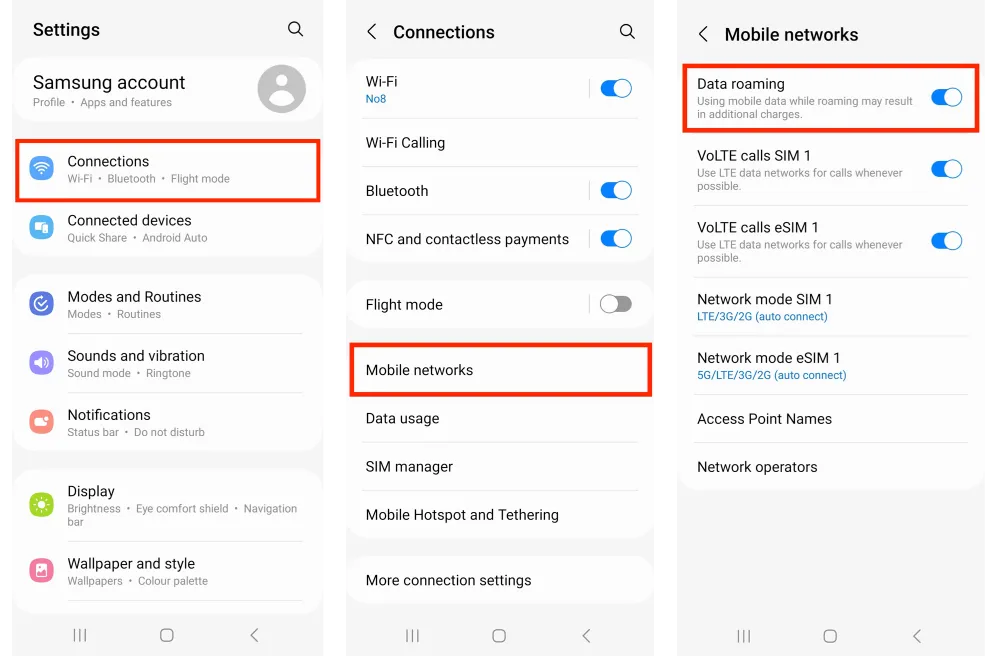
- Go back to Settings → Connections → SIM Manager
- Under Preferred SIM, set your Simbye eSIM for Mobile data
- Keep your primary SIM selected for Calls and Messages
- Go to Settings → Connections → Mobile networks
- Toggle Data Roaming to ON
Important: Disable "Mobile Data Switching" to prevent your Samsung from accidentally using your primary SIM's expensive roaming data.
Configure Your APN (If Needed)
Most Simbye eSIMs configure automatically, but if you're having connection issues:
- Go to Settings → Connections → Mobile networks → Access Point Names
- Select your Simbye eSIM
- If no APN appears, tap the three dots in the top-right corner
- Create a new APN with "simbye" in both the Name and APN fields
- Tap Save
Which Samsung Phones Support eSIM?
Samsung introduced eSIM support with the Galaxy S20 series in 2020 and has expanded it across flagship and foldable devices. Here's the complete list:
Galaxy S Series
- Galaxy S25 / S25+ / S25 Ultra / S25 Edge
- Galaxy S24 / S24+ / S24 Ultra
- Galaxy S23 / S23+ / S23 Ultra / S23 FE
- Galaxy S22 / S22+ / S22 Ultra
- Galaxy S21 / S21+ / S21 Ultra (requires One UI 4.0 update)
- Galaxy S20 / S20+ / S20 Ultra (US versions may not support eSIM)
Galaxy Z Series (Foldables)
- Galaxy Z Fold7 / Z Flip7
- Galaxy Z Fold6 / Z Flip6
- Galaxy Z Fold5 / Z Flip5
- Galaxy Z Fold4 / Z Flip4
- Galaxy Z Fold3 / Z Flip3
- Galaxy Z Fold2 / Z Fold
- Galaxy Z Flip / Z Flip 5G (US Z Flip 5G excluded)
Galaxy Note & A Series
- Galaxy Note 20 Ultra
- Galaxy A56 / A55 / A54 / A36 / A35 (Europe, North America, Korea only)
- Galaxy XCover7 / XCover7 Pro
Note: eSIM support depends on region and carrier. US versions of Galaxy S20/S21 and Note 20 Ultra may have eSIM disabled. Always check SIM Manager to confirm.
Simbye vs Other eSIM Providers: Samsung Experience
| Feature | Simbye | Airalo | Holafly |
|---|---|---|---|
| Starting Price | $1 | $4.50 | $6/day |
| Free Trial | 100MB free | No | No |
| Android Compatibility | Excellent | Good | Good |
| 24/7 Human Support | Yes (15 agents) | Chatbot + email | Yes |
| Easy Top-Up | Yes | Limited | No |
| Hotspot Included | Yes | Most plans | Limited |
Simbye is known for better Android compatibility with fewer signal issues than some competitors. Our 24/7 support team can walk you through any Samsung-specific setup challenges.
Troubleshooting: Common Samsung eSIM Issues
No "Add eSIM" option in SIM Manager
Your Samsung model or regional variant may not support eSIM. Check the compatibility list above. Some carrier-locked devices also hide the eSIM option—contact your carrier about unlocking.
QR code won't scan
Make sure screen brightness is high on the device displaying the QR code. On Samsung S22 and newer, you can scan from a screenshot—take a photo of your QR code and tap the gallery icon during scanning. Alternatively, use manual installation with your activation code.
eSIM installed but no internet
Check these settings in order:
- Ensure your Simbye eSIM is toggled ON in SIM Manager
- Set Simbye as your Mobile Data source under "Preferred SIM"
- Turn ON Data Roaming (Settings → Connections → Mobile networks)
- Verify the APN is configured correctly
- Set Network Selection to "Automatic"
Slow or unstable connection
Go to Settings → Connections → Mobile networks → Network operators. Make sure "Select automatically" is enabled so your Samsung chooses the strongest available network.
Need help?
Simbye's 24/7 support team responds in seconds via WhatsApp, Telegram, or Live Chat. Real humans who speak 12 languages—not chatbots.
How to Check if Your Samsung Supports eSIM
Not sure if your Samsung has eSIM capability? Here are three ways to check:
Method 1: Check SIM Manager
Go to Settings → Connections → SIM Manager. If you see "Add eSIM" or "Add mobile plan," your device supports eSIM.
Method 2: Check Your EID
Dial *#06# on your phone. If you see a 32-digit EID (Embedded SIM ID) along with your IMEI, your Samsung supports eSIM.
Method 3: Check Device Settings
Go to Settings → About phone → Status → EID. If an EID number appears, you're good to go.
Frequently Asked Questions
How long does it take to install an eSIM on Samsung?
Under 2 minutes. Navigate to SIM Manager, scan your QR code, confirm installation, and you're done. The eSIM profile downloads almost instantly on a stable connection.
Can I install my Simbye eSIM before traveling?
Yes—and we recommend it. Install at home on Wi-Fi, then activate Data Roaming when you arrive at your destination. Simbye eSIMs don't auto-activate, so you control when your data validity starts.
Can I use my Samsung's physical SIM and eSIM together?
Yes! Samsung's Dual SIM feature lets you keep your home number active for calls and texts while using your Simbye eSIM for data. Just configure your Preferred SIM settings correctly.
Does Simbye eSIM work with hotspot on Samsung?
Yes, hotspot (Mobile Hotspot) is included with all Simbye plans. Share your data with laptops, tablets, or travel companions at no extra cost.
What if I run out of data?
Simbye was the first eSIM provider to offer easy top-ups. Open your account or the Simbye app, select your eSIM, and add more data instantly—no need to install a new eSIM.
Why doesn't my Samsung show the eSIM option?
Three possible reasons: your model doesn't support eSIM (check the list above), your device is carrier-locked, or you're using a regional variant without eSIM (China, Hong Kong, Taiwan models). Contact your carrier about unlocking, or check with Samsung support.
Stay Connected with Simbye
Installing an eSIM on Samsung takes less than 2 minutes—and with Simbye, you get the cheapest prices in the market, 24/7 human support, and a free 100MB trial to test before you commit.
Try Simbye Free (100MB Trial) →
Download the Simbye app for the easiest experience:
Comments (0)
Leave a Comment