
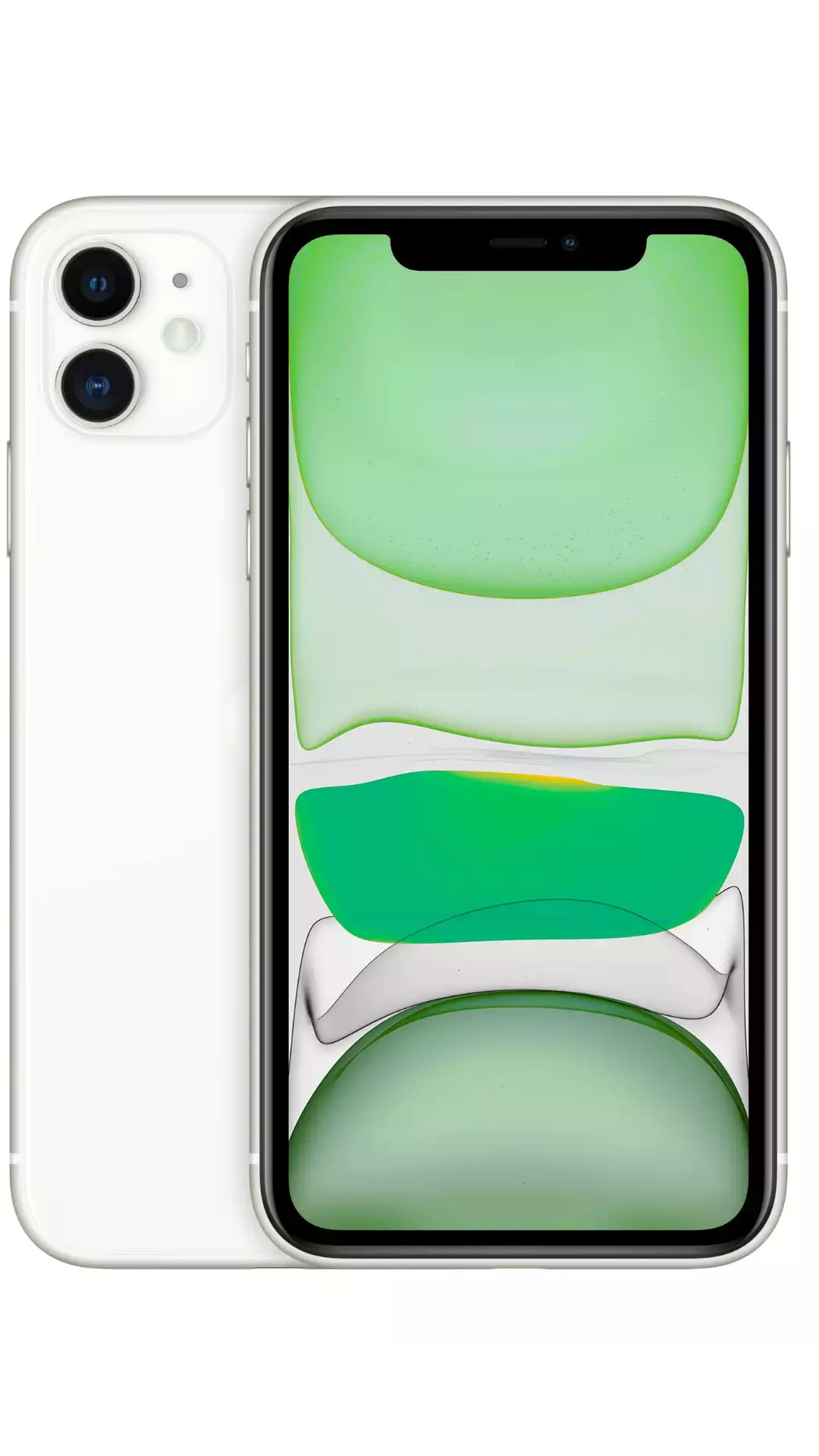
The iPhone 11 supports eSIM. To activate a Simbye eSIM on iPhone 11, open Settings → Cellular → Add eSIM and scan the QR code from your confirmation email. The iPhone 11, 11 Pro, and 11 Pro Max all run iOS 13 or later, work with a physical nano-SIM and an eSIM at the same time (dual SIM), and can store multiple eSIM profiles with one eSIM active at a time. Simbye covers 190+ countries from $3.
The iPhone 11 was Apple's first mainstream lineup to make eSIM travel genuinely practical. Instead of hunting for a local SIM at the airport, you scan a QR code and keep your home number live for calls and texts.
This guide walks through compatibility, step-by-step activation, the best dual-SIM setup for travel, a troubleshooting table for the errors people actually hit, and how to get a Simbye eSIM that works on your iPhone 11.
iPhone 11 eSIM compatibility
Every iPhone 11 model supports eSIM. There is no region-locked exception for the 11, 11 Pro, or 11 Pro Max — all variants ship with both an eSIM and a physical nano-SIM tray.
| Feature | iPhone 11 / 11 Pro / 11 Pro Max |
|---|---|
| eSIM support | Yes |
| Physical SIM | 1× nano-SIM (tray on all models) |
| Dual SIM | Yes — nano-SIM + eSIM |
| eSIM profiles stored | Multiple profiles, one eSIM active at a time |
| Minimum iOS | iOS 13 (shipped with iOS 13) |
| Chip | A13 Bionic |
| Released | 2019 |
Two things matter most for travelers. First, the iPhone 11 is a single-active-eSIM device: you can save several eSIM profiles, but only one eSIM transmits at any moment. Second, that eSIM runs alongside your nano-SIM, so your home line and a travel data plan coexist without swapping cards.
One requirement applies to every model: your iPhone 11 must be carrier-unlocked to install a third-party travel eSIM. Phones bought outright from Apple are unlocked; phones on a carrier instalment plan may not be. New to the technology? Start with What is an eSIM?
How to activate a Simbye eSIM on iPhone 11
Activation takes about two minutes. Do steps 1–6 on Wi-Fi before you fly, then finish step 7 when you land.
- Buy your eSIM: Choose a plan from Simbye (190+ countries, from $3). You receive a QR code by email instantly.
- Open settings: Go to Settings → Cellular (labelled "Mobile Data" in some regions).
- Add the eSIM: Tap "Add eSIM" or "Add Cellular Plan".
- Scan the QR code: Point the camera at the Simbye QR code. To install without scanning, choose "Enter Details Manually" and paste the SM-DP+ address — see manual eSIM install via SM-DP+.
- Label the line: Name it "Travel" or by destination (for example "Japan Data") so it is easy to tell apart from your home number.
- Set the data line: Select the new eSIM as your default line for cellular data.
- Connect on arrival: When you reach your destination, turn on Data Roaming for the eSIM line. It registers on a local network automatically.
Want the same steps with screenshots? See the complete iPhone eSIM installation guide.
Dual-SIM setup for travel
Dual SIM is the whole point of an eSIM on the iPhone 11. The goal is simple: keep your home number reachable while paying local-style data prices abroad.
- Line 1 — nano-SIM (home number): Leave it on for calls and texts. Turn its data off to avoid roaming charges.
- Line 2 — Simbye eSIM (travel data): Set it as the default data line and enable Data Roaming so it uses the local network.
To configure: Settings → Cellular → tap the travel eSIM → turn on Data Roaming, then under "Cellular Data" pick the eSIM as the default. Your home SIM still rings; your data flows over the cheaper Simbye line.
A useful extra: enable "Allow Cellular Data Switching" only if you want the iPhone to fall back to your home line when the eSIM has no signal — leave it off if you are watching roaming costs. For the bigger picture, read eSIM vs SIM card: key differences.
Common issues and fixes
Most iPhone 11 eSIM problems come down to a locked phone, a reused QR code, or Data Roaming being off. Use this table to jump straight to the fix.
| Problem | Likely cause | Fix |
|---|---|---|
| "eSIM Cannot Be Added" / "Code no longer valid" | Phone is carrier-locked, QR already scanned (single-use), or no internet during install | Unlock the phone with your carrier; install over Wi-Fi; request a fresh QR if it was already used. Full fix |
| "Unable to Activate eSIM" | Network registration failed | Toggle Airplane Mode, restart the iPhone, confirm Data Roaming is on, then reset network settings (Settings → General → Transfer or Reset → Reset Network Settings). Full guide |
| No data after landing | eSIM not set as data line, or roaming off | Set the Simbye eSIM as the default data line and enable Data Roaming for that line. |
| Connected but pages won't load | Wrong network or APN | Manually select a carrier: Settings → Cellular → eSIM line → Network Selection → turn off Automatic and pick a network. Check APN if needed: what is an APN? |
| Home number stopped working abroad | Home line data left on, or line toggled off | Keep the home SIM line enabled for calls/texts but turn its data off; data should run on the eSIM only. |
| Removing the eSIM after the trip | Plan finished | Settings → Cellular → select the eSIM → Remove eSIM. This is permanent, so don't remove it while data remains. How to delete an eSIM |
Still stuck after all of the above? Work through the eSIM not working troubleshooting guide.
Get a Simbye eSIM for your iPhone 11
Every Simbye plan works on the iPhone 11, 11 Pro, and 11 Pro Max. Coverage spans 190+ countries with prices from $3, so you can install before departure and connect the moment you arrive.
- Europe — one plan across 39 countries (Europe guide)
- Japan — from $3 (Japan guide)
- USA — from $3 (USA guide)
- Thailand — from $3 (Thailand guide)
- Turkey — from $3 (Turkey guide)
Not sure how big a plan to buy? Read how much data do I need when traveling? or compare prices in the cheapest eSIM for travel 2026 breakdown.
→ Browse all Simbye eSIM plans from $3
Frequently asked questions
Does the iPhone 11 support eSIM?
Yes. The iPhone 11, iPhone 11 Pro, and iPhone 11 Pro Max all support eSIM and shipped with iOS 13, which introduced dual-SIM eSIM features. Every variant also keeps a physical nano-SIM tray.
Can I use an eSIM and a physical SIM at the same time on iPhone 11?
Yes. The iPhone 11 runs one nano-SIM and one eSIM simultaneously. Most travelers keep the home number on the nano-SIM for calls and texts and use a Simbye eSIM for data.
How many eSIMs can the iPhone 11 store?
The iPhone 11 can store multiple eSIM profiles, but only one eSIM is active at a time. You can install several plans and switch between them in Settings → Cellular, though only one eSIM transmits data at once.
How do I know if my iPhone 11 is unlocked?
Go to Settings → General → About and look for "No SIM restrictions". If you bought the phone outright from Apple it is unlocked; if it came from a carrier on a payment plan it may be locked, in which case contact the carrier to unlock it before installing a travel eSIM.
Will installing an eSIM affect my iPhone 11 warranty?
No. eSIM is a built-in, Apple-supported feature of the iPhone 11. Installing and removing eSIM profiles is a normal operation and does not affect your warranty.
Why is there no data after I land?
Two settings usually cause this: the Simbye eSIM is not set as the default data line, or Data Roaming is off for that line. Open Settings → Cellular, select the eSIM, enable Data Roaming, and set it as the default for cellular data.
Can I reuse a Simbye eSIM QR code on a second iPhone?
No. Each eSIM QR code is single-use and tied to one device. If you need it on another phone, install it there from the start rather than scanning the same code twice.
Should I delete the eSIM when my trip ends?
Only once the plan is finished. Removing an eSIM is permanent (Settings → Cellular → select the eSIM → Remove eSIM), so leave it installed while any data or validity remains. See the delete eSIM guide for details.
Related guides:
Comments (0)
Leave a Comment