
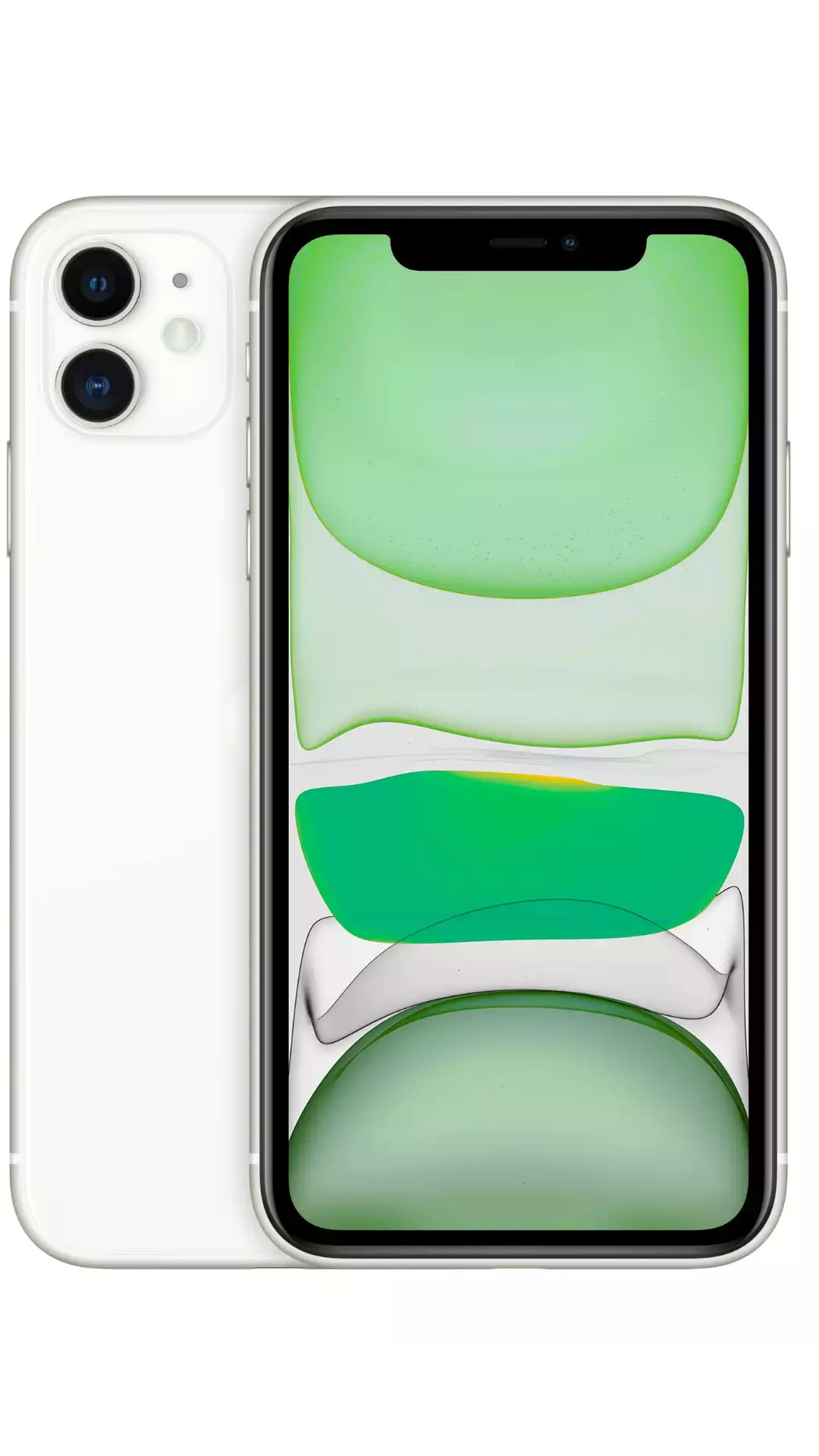
The iPhone 11 fully supports eSIM technology, making it one of the easiest ways to stay connected while traveling abroad. Instead of swapping physical SIM cards at every destination, you can install a travel eSIM in minutes and keep your home number active simultaneously.
This guide covers everything you need to know about using an eSIM on your iPhone 11: setup, activation, dual-SIM configuration, troubleshooting, and the best eSIM plans for travel.
iPhone 11 eSIM Specifications
| Feature | Details |
|---|---|
| eSIM Support | ✅ Yes |
| Maximum eSIM Profiles | Up to 8 eSIM profiles, 1 active |
| Physical SIM | 1x nano-SIM |
| Dual-SIM | ✅ Yes (eSIM + nano-SIM) |
| Chip | A13 Bionic |
| Release Year | 2019 |
| Models | iPhone 11, 11 Pro, 11 Pro Max |
How to Install an eSIM on iPhone 11
- Purchase your eSIM: Get a travel eSIM from Simbye (190+ countries, from $3) — you'll receive a QR code instantly
- Open Settings: Go to Settings → Cellular (or Mobile Data)
- Add eSIM: Tap "Add eSIM" or "Add Cellular Plan"
- Scan QR Code: Point your camera at the QR code from Simbye
- Label your plan: Name it something like "Travel" or "Japan Data" to distinguish it from your main line
- Set as data line: Choose the eSIM as your default data line for internet access
- Activate abroad: Your eSIM activates automatically when you connect to a network in your destination country
Detailed walkthrough with screenshots: Complete iPhone eSIM Installation Guide
Dual-SIM Setup for Travel
The iPhone 11's dual-SIM capability is perfect for travelers. Here's the ideal configuration:
- Line 1 (Physical SIM or eSIM): Your home number — keep it for receiving calls and texts
- Line 2 (eSIM): Your Simbye travel eSIM — use it for affordable data abroad
To configure: Go to Settings → Cellular → select your travel eSIM → turn on "Data Roaming" and set it as the default data line. Your home SIM stays active for calls and texts while you use the travel eSIM for cheap data.
Learn more: eSIM vs SIM Card: Key Differences
Common Issues & Troubleshooting
"eSIM Cannot Be Added" Error
This usually means:
- Your phone is carrier-locked — contact your carrier to unlock it
- The QR code has already been scanned — each code is single-use
- No internet connection — you need WiFi or data to download the eSIM profile
Full fix: How to Fix "eSIM Cannot Be Added" Error
"Unable to Activate eSIM" Error
Try these steps:
- Toggle Airplane Mode on and off
- Restart your iPhone 11
- Check that "Data Roaming" is enabled for the eSIM line
- Reset network settings: Settings → General → Transfer or Reset → Reset Network Settings
Full guide: Fix "Unable to Activate eSIM" Error
No Data Connection After Landing
- Ensure the travel eSIM is set as your default data line
- Turn on "Data Roaming" for the eSIM line
- Manually select a network: Settings → Cellular → eSIM line → Network Selection → turn off Automatic and select a carrier
- Check APN settings: What Is an APN?
How to Delete an eSIM
When your trip is over: Settings → Cellular → select the eSIM → "Remove eSIM". Note: this permanently deletes the eSIM profile. If you have remaining data, don't delete it until the plan expires.
Detailed guide: How to Delete eSIM from iPhone
Best eSIM Plans for iPhone 11 Travelers
Simbye offers eSIM plans for 190+ countries, all compatible with iPhone 11:
- Europe — 39 countries from $3 (Europe guide)
- Japan — from $3 (Japan guide)
- USA — from $3 (USA guide)
- Thailand — from $3 (Thailand guide)
- Turkey — from $3 (Turkey guide)
Not sure how much data you need? Read: How Much Data Do I Need When Traveling?
Want a free test first? Simbye offers a free 100MB trial eSIM — no credit card required.
FAQ
How many eSIMs can I store on iPhone 11?
The iPhone 11 can store Up to 8 eSIM profiles, 1 active. You can have multiple eSIM profiles installed but only use one or two simultaneously (dual-SIM).
Is my iPhone 11 carrier-locked?
If you bought your iPhone 11 directly from Apple or at full price, it's unlocked. If you bought it through a carrier on a payment plan, it may be locked. Contact your carrier or check: Settings → General → About → look for "No SIM restrictions".
Can I use eSIM and physical SIM at the same time?
Yes. The iPhone 11 supports one physical nano-SIM plus one eSIM simultaneously, giving you dual-SIM functionality.
Will using an eSIM void my warranty?
No. eSIM is a built-in feature of the iPhone 11 — using it is completely normal and supported by Apple.
Related guides:
Comments (0)
Leave a Comment