
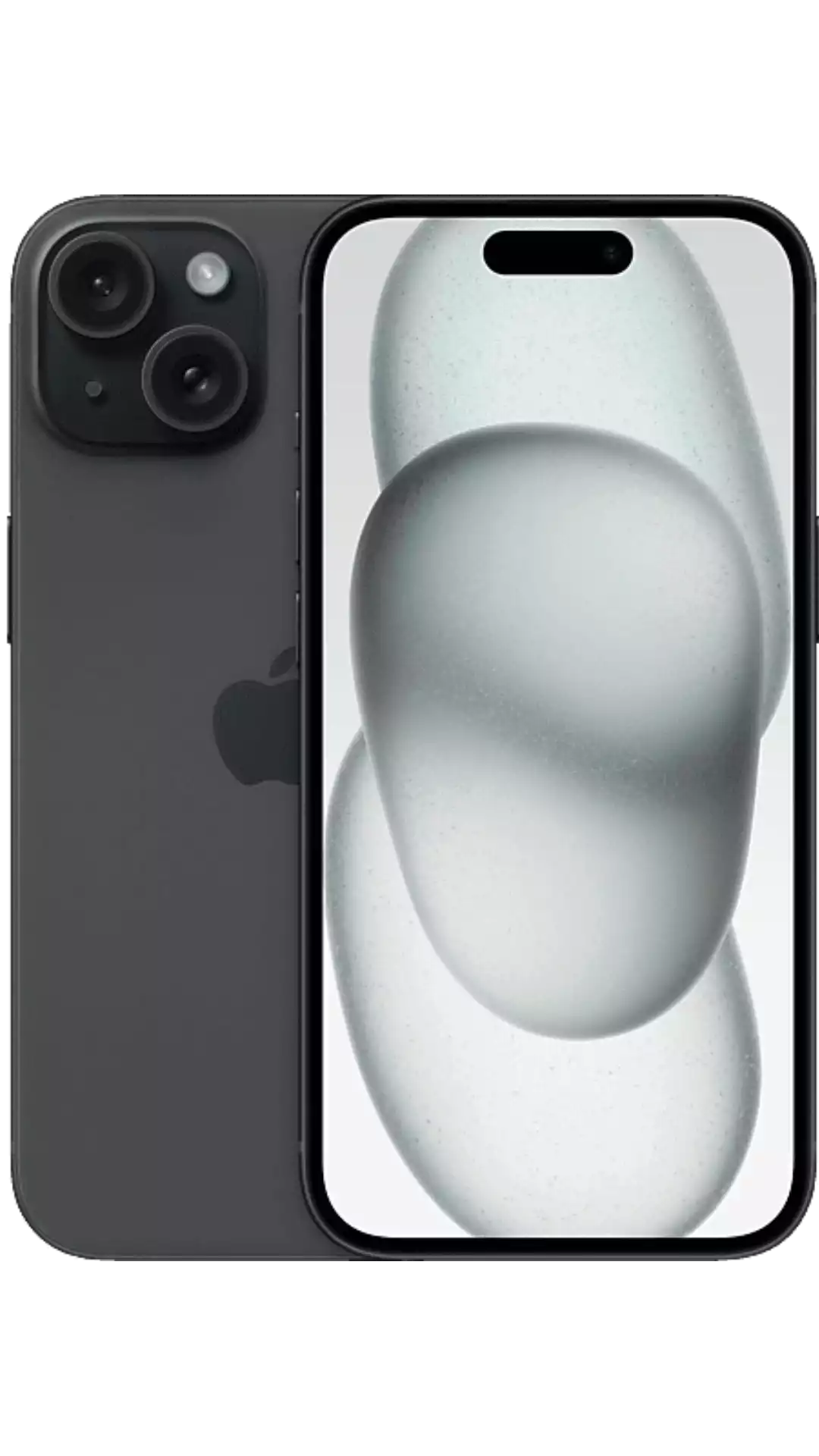
Quick answer: The iPhone 15 supports eSIM. To activate a Simbye eSIM on iPhone 15, open Settings → Cellular → Add eSIM and scan the QR code that Simbye sends by email right after purchase. Every iPhone 15 model — iPhone 15, 15 Plus, 15 Pro and 15 Pro Max — works with eSIM and supports dual eSIM, so a travel data plan can run alongside the home number at the same time. iPhone 15 models sold in the United States are eSIM-only and have no physical SIM tray. A Simbye travel eSIM for over 190 countries starts at $3 with the QR code delivered instantly.
The iPhone 15 is built for travel. Every model ships with eSIM support, stores several eSIM profiles at once, and runs two lines side by side, so a cheap local data plan can sit next to the home number without swapping a single card.
This guide explains exactly how to install and activate a Simbye eSIM on iPhone 15, which models are eSIM-only, how to set up dual SIM for travel, and how to fix the most common activation errors. Everything below has been checked against Apple's own iPhone 15 hardware behaviour.
iPhone 15 eSIM compatibility
Yes — the iPhone 15 fully supports eSIM, and so do the 15 Plus, 15 Pro and 15 Pro Max. All four models also support dual eSIM: two eSIMs installed and active at the same time, with several more profiles stored in the background ready to switch on.
The one big difference is the SIM tray, and it comes down to where the iPhone 15 was bought:
- United States models are eSIM-only. There is no physical SIM tray at all, so every line — including a travel plan — must be an eSIM.
- International models (Europe, UK, Asia, most of the world) keep a single nano-SIM slot plus eSIM. These can run one physical SIM and one eSIM together, or two eSIMs.
Either way, a Simbye travel eSIM works perfectly: on a US iPhone 15 it becomes the data line, and on an international iPhone 15 it sits alongside the home nano-SIM.
| Feature | Details |
|---|---|
| eSIM support | Yes — all iPhone 15 models |
| Dual SIM | Yes — dual eSIM (2 active), or 1 nano-SIM + 1 eSIM on international models |
| Stored eSIM profiles | Multiple eSIMs stored, up to 2 active at once |
| Physical SIM tray | None on US models (eSIM-only) · 1 nano-SIM on international models |
| Charging port | USB-C |
| Models covered | iPhone 15, 15 Plus, 15 Pro, 15 Pro Max |
| Release year | 2023 |
Not sure whether a particular iPhone 15 is the US eSIM-only version? Open Settings → General → About and scroll to the bottom — if there is no "Physical SIM" entry and only "Available SIM" or "Digital SIM" rows, it is an eSIM-only model.
How to activate a Simbye eSIM on iPhone 15
Activation takes about two minutes. Install the eSIM before the trip while connected to Wi-Fi, then it switches on automatically the moment the destination network is in range.
- Buy the eSIM: Choose a plan from Simbye for the destination country (190+ countries, from $3). The QR code arrives by email instantly, and is also saved in the Simbye app under My eSIMs.
- Connect to Wi-Fi: Make sure the iPhone 15 has a working internet connection — the eSIM profile is downloaded over the network during install.
- Open eSIM setup: Go to Settings → Cellular (called Mobile Data in some regions), then tap Add eSIM or Add Cellular Plan.
- Scan the QR code: Point the camera at the QR code from Simbye. To install without a second screen, tap Enter Details Manually and paste the SM-DP+ address and activation code instead.
- Label the plan: Give it a clear name such as "Travel" or "Japan Data" so it is easy to tell apart from the home line.
- Set the data line: When asked, choose the Simbye eSIM as the line for cellular data, and keep the home number as the line for calls and texts.
- Turn on Data Roaming: Open Settings → Cellular → [Simbye eSIM] → Data Roaming and switch it on. This is required for travel eSIMs and does not incur home-carrier roaming charges, because the data runs on the Simbye plan.
- Arrive and connect: On landing, the eSIM registers on a local network automatically and data starts working. No further steps needed.
A Simbye eSIM can be installed ahead of time and stays dormant until first use, so there is no rush to set it up at the airport. Need a fuller walkthrough with screenshots? See the complete iPhone eSIM installation guide.
Dual SIM setup on iPhone 15 for travel
Dual SIM is the reason the iPhone 15 is so good for trips: keep the home number reachable for calls, banking codes and messages, while a cheap eSIM handles all the data.
The recommended travel configuration looks like this:
- Line 1 — home number (nano-SIM on international models, or eSIM on US models): keep it on for calls and SMS so important texts and verification codes still arrive.
- Line 2 — Simbye travel eSIM: set as the default data line for affordable internet abroad.
To set it up, open Settings → Cellular and configure three things:
- Cellular Data: set to the Simbye eSIM, and turn off "Allow Cellular Data Switching" so the iPhone never falls back to the expensive home line for data.
- Default Voice Line: set to the home number so outgoing calls still use the regular plan.
- Data Roaming: turn it on for the Simbye eSIM line only.
A useful extra step: to avoid surprise charges on the home line abroad, open Settings → Cellular → [home line] and switch Data Roaming off for that line. The home number still receives calls and texts, but cannot use any data — all data flows through the Simbye eSIM. For a deeper look at how the two technologies differ, read eSIM vs SIM card: key differences.
Common iPhone 15 eSIM issues and fixes
Most iPhone 15 eSIM problems come down to a locked phone, roaming being off, or the wrong data line being selected. The table below maps each symptom to the fix.
| Issue | Likely cause | Fix |
|---|---|---|
| "eSIM Cannot Be Added" / "This code is no longer valid" | Phone is carrier-locked, the QR code was already used (single-use), or there is no internet during install | Confirm the iPhone 15 is unlocked, connect to Wi-Fi, and install from the original code. Full fix guide |
| "Unable to Activate eSIM" | Temporary network handshake failure | Toggle Airplane Mode on and off, restart the iPhone 15, then reset network settings via Settings → General → Transfer or Reset → Reset Network Settings. Step-by-step guide |
| No data after landing | Travel eSIM is not the default data line, or Data Roaming is off | Set the Simbye eSIM as the data line and turn on Data Roaming for it. If it still fails, select a carrier manually under Network Selection |
| eSIM shows "No Service" | iPhone is locked to the wrong network, or out of plan coverage | Open Settings → Cellular → [Simbye eSIM] → Network Selection, turn off Automatic, and pick a supported carrier manually |
| Apps not loading despite signal | Wrong or missing APN | Check the access point name for the eSIM line. What is an APN? |
| Need to remove the eSIM after the trip | Plan finished or no longer needed | Settings → Cellular → select the eSIM → Remove eSIM. Do not remove it while data remains, as deletion is permanent. How to delete eSIM from iPhone |
Still stuck after trying the steps above? The general eSIM not working troubleshooting guide covers less common causes, and manual install via SM-DP+ is a reliable fallback when QR scanning fails.
iPhone 15: USB-C and eSIM together
The iPhone 15 was the first iPhone to move from Lightning to USB-C, while keeping the eSIM-only design on US models. For travellers this is a double win: USB-C means the same cable charges the iPhone, an iPad and most modern Android phones, so there is one less adapter to pack — and eSIM means no plastic SIM cards to carry, lose or swap. Together they make the iPhone 15 one of the most travel-ready phones Apple has shipped.
Get a Simbye eSIM for iPhone 15
Simbye offers travel eSIMs for over 190 countries, every one of them compatible with the iPhone 15. Plans start at $3, the QR code is delivered the instant the order is placed, and most plans can be topped up later from the Simbye app instead of buying a new eSIM. Every purchase also earns 5% cashback into the in-app wallet to spend on the next trip.
- Europe — 39 countries, one plan, from $3 (Europe guide)
- Japan — from $3 (Japan guide)
- USA — from $3, ideal for eSIM-only US iPhone 15 (USA guide)
- Thailand — from $3 (Thailand guide)
- Turkey — from $3 (Turkey guide)
Not sure how much data a trip needs? Read how much data do I need when traveling? — then browse every Simbye eSIM plan and install it on the iPhone 15 in minutes.
Frequently asked questions
Does the iPhone 15 support eSIM?
Yes. Every iPhone 15 model — iPhone 15, 15 Plus, 15 Pro and 15 Pro Max — supports eSIM and dual eSIM. Several eSIM profiles can be stored on the device, with up to two active at the same time.
How do I activate a Simbye eSIM on iPhone 15?
Open Settings → Cellular → Add eSIM, then scan the QR code that Simbye emails after purchase. Label the plan, set it as the data line, and turn on Data Roaming for that line. The eSIM connects automatically once the destination network is in range.
Is the iPhone 15 eSIM-only?
iPhone 15 models sold in the United States are eSIM-only and have no physical SIM tray. International models keep one nano-SIM slot in addition to eSIM. A Simbye travel eSIM works on both versions.
Can I use an eSIM and a physical SIM at the same time on iPhone 15?
Yes, on international models, which support one nano-SIM plus an eSIM running together. US eSIM-only models instead run two eSIM lines at the same time. Either setup keeps the home number active while a travel eSIM handles data.
How many eSIMs can the iPhone 15 store?
The iPhone 15 stores multiple eSIM profiles at once and keeps up to two active simultaneously through dual eSIM. Inactive profiles stay saved on the device and can be switched on at any time without reinstalling.
How do I know if my iPhone 15 is carrier-locked?
Open Settings → General → About and look for "No SIM restrictions". iPhone 15 units bought outright from Apple are unlocked, while units bought through a carrier instalment plan may be locked. A locked phone is the most common reason a travel eSIM will not add.
Will Data Roaming on iPhone 15 cause extra charges with a Simbye eSIM?
No. Data Roaming must be turned on for any travel eSIM to work, but the data runs on the Simbye plan, not the home carrier. To be safe, turn Data Roaming off on the home line so only the Simbye eSIM uses data.
Can I install a Simbye eSIM on iPhone 15 before I travel?
Yes. Install the eSIM at home over Wi-Fi and it stays dormant until the destination network is reached. The QR code from Simbye arrives instantly, so the plan can be ready days before departure.
Related guides:
Comments (0)
Leave a Comment